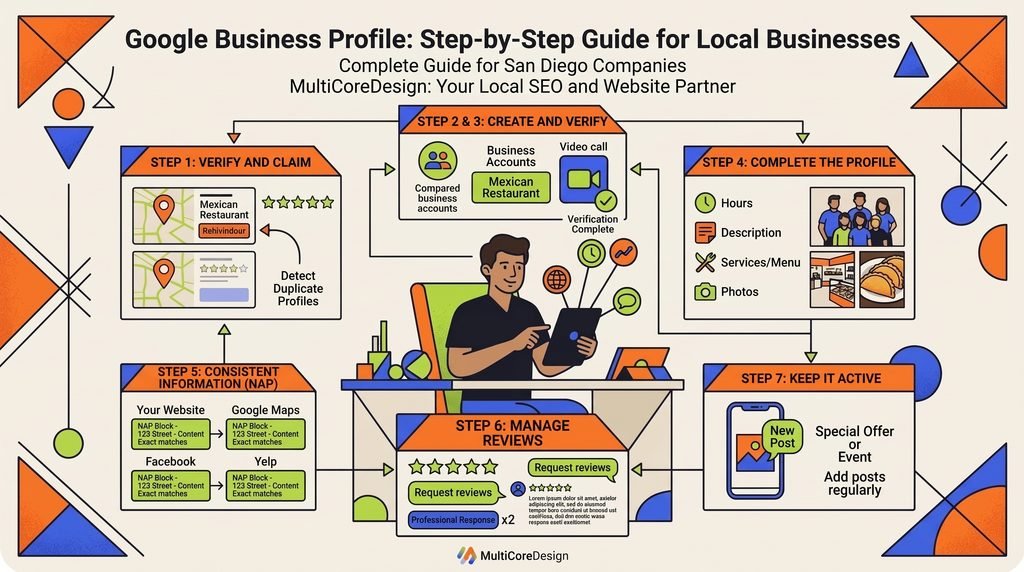
When someone nearby searches for a service like yours, the first thing they often see isn’t a website. It’s a list of businesses on a map, with hours, photos, reviews, and a button to call or get directions. Those listings come from Google Business Profile, and for most local businesses, churches, nonprofits, and restaurants, it’s one of the most valuable free tools available.
This guide walks you through setting up your profile and, just as important, keeping it useful after it’s live.
What is Google Business Profile?
Google Business Profile (formerly Google My Business) is a free listing that shows your organization’s key information on Google Search and Google Maps. A complete profile helps people quickly answer the questions they care about most: Are you open? Where are you? How do I contact you? Are you any good?
Step 1: Check whether a profile already exists
Search for your business name and city on Google Maps. Google sometimes creates listings automatically, or a former employee may have set one up years ago. If you find a listing, choose the option to claim or manage it instead of creating a duplicate. Duplicate listings confuse customers and can hurt your visibility.
Step 2: Create or claim your profile
Go to Google Business Profile and sign in with a Google account you’ll keep long-term. We recommend a shared business account rather than a personal one, so access doesn’t disappear if someone leaves.
- Enter your business name exactly as customers know it. Don’t add extra keywords or city names.
- Choose your primary category. Be specific: “Mexican restaurant” works better than “Restaurant.”
- Add your address if customers visit you, or set a service area if you travel to them.
- Add your phone number and website.
Step 3: Verify your business
Google needs to confirm that you really run the business. Depending on your business type, it may ask you to verify by phone, text, email, video, or postcard. Follow the instructions Google gives you. Your profile won’t appear fully until verification is complete.
Step 4: Complete every section
A complete profile gives Google more information to work with and gives customers more reasons to choose you. Make sure you fill in:
- Hours, including special hours for holidays and events.
- Description: a short, clear explanation of who you are, what you offer, and who you serve.
- Services or menu: list what you actually offer, in the words customers use.
- Attributes, such as wheelchair accessibility, outdoor seating, or languages spoken.
- Photos of your storefront, interior, team, products, or events. Real photos build more trust than stock images.
Step 5: Keep your information consistent
Your business name, address, and phone number should match everywhere: your website, Google, Yelp, Facebook, and local directories. Inconsistent information makes it harder for Google to trust your listing and confuses customers.
Step 6: Ask for reviews and respond to them
Reviews are one of the first things people read. Ask happy customers for a review, and make it easy by sharing a direct link. Respond to every review, positive or negative, politely and professionally. A thoughtful reply to a bad review often builds more trust than a perfect rating.
Step 7: Keep it active
A profile that was set up once and forgotten quickly becomes outdated. Update your hours before holidays, add new photos regularly, and use Google posts to share events, specials, or announcements.
Common mistakes to avoid
- Adding keywords to your business name (“Joe’s Plumbing Best Plumber San Diego”).
- Leaving old hours or a disconnected phone number.
- Creating more than one profile for the same location.
- Using a personal account that only one person can access.
- Ignoring reviews.
Your profile works best with a good website
Google Business Profile gets people’s attention, but many of them will still click through to your website before they call or visit. If your site is outdated, hard to use on a phone, or missing key information, you can lose them there.
At MultiCoreDesign, we help San Diego businesses, churches, and nonprofits set up and optimize their Google Business Profile as part of our SEO and local visibility services, and we build mobile-friendly websites that turn those visits into calls, visits, and inquiries.
Not sure where to start? Tell us what you need, and we’ll help you figure out the right next step.